Interface Overview
Learn to navigate your Schatzi-connected OpenWebUI interface effectively.
Key Interface Elements
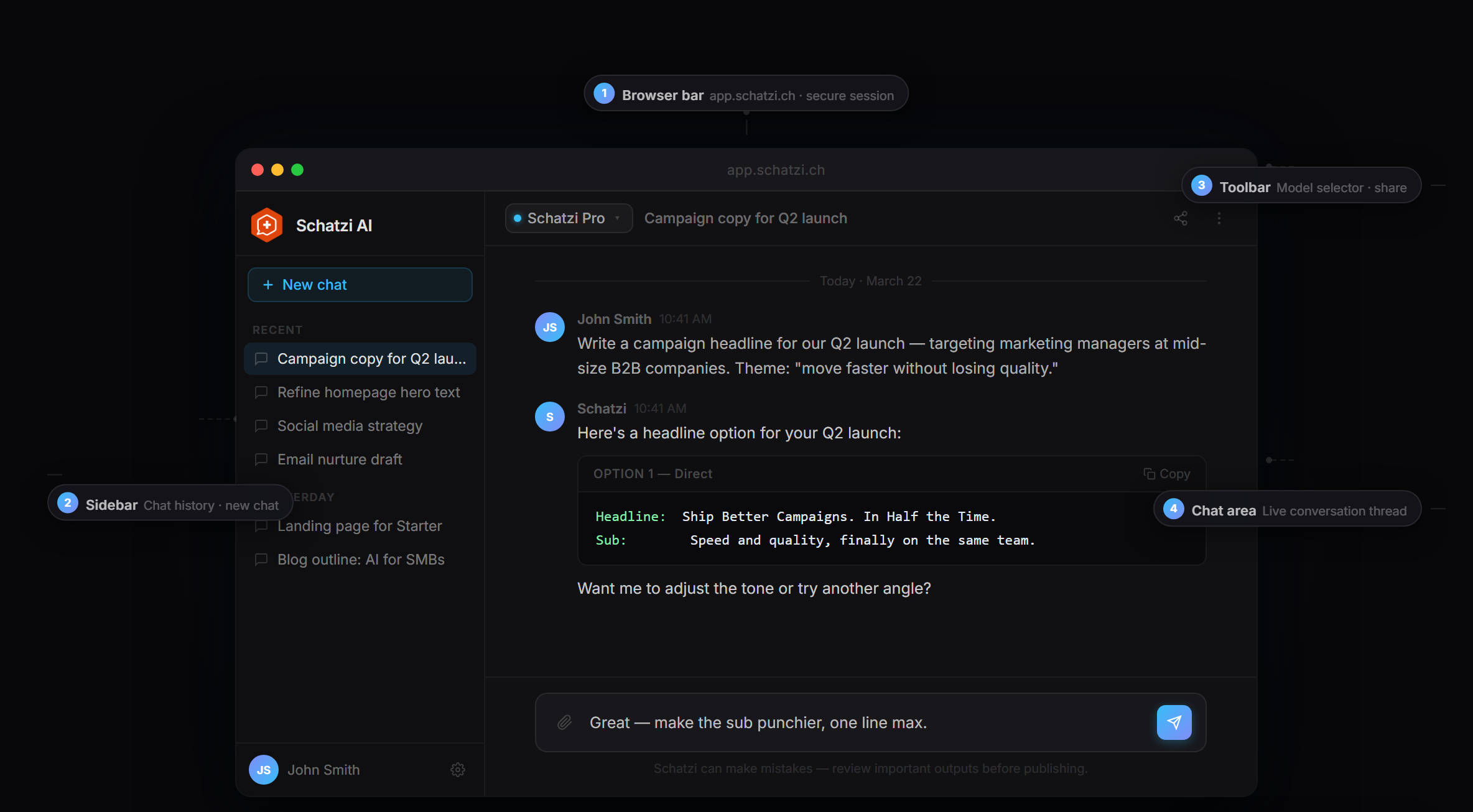
Model Selector
Located at the top or side bar, this dropdown lets you choose which AI model to use for your current conversation.
How to use:
- Click the selector to view available models
- Choose based on your task (see Choosing the Right Model)
- You can switch models mid-conversation
Chat Area
The main workspace where your conversations with AI models appear.
Features:
- Messages are displayed in chronological order
- Your prompts appear on one side
- AI responses appear on the other
- Supports rich formatting (code blocks, lists, tables)
Conversation List / History
View and manage all your past conversations.
Capabilities:
- Browse previous chats
- Resume conversations from any point
- Search through chat history
- Organize by date or topic
Input Bar
Where you write your prompts and interact with the AI.
Features:
- Multi-line text input (Shift+Enter for new line)
- File attachment button
- Send button (or press Enter)
- Character/token counter (if enabled)
File Upload Area
Attach documents directly to your conversations.
Supported types:
- Documents: PDF, DOCX, TXT
- Spreadsheets: XLSX, CSV
- Images: PNG, JPG (if vision-enabled)
- Size limit: Up to 150MB (configurable)
Settings / Profile
Access your account settings and preferences.
Options:
- Theme selection (light/dark mode)
- Language preferences
- Default model settings
- API key management (if exposed)
- Usage monitoring
Interface Layout
Navigation Tips
Quick Actions
- New Chat: Click the "+" button or use keyboard shortcut
- Switch Chats: Click any conversation in the history panel
- Rename Chat: Right-click (or long-press on mobile) on a conversation
- Delete Chat: Find the delete option in conversation settings
Keyboard Shortcuts
- Enter: Send message
- Shift + Enter: New line in message
- Ctrl/Cmd + K: Quick search
- Esc: Close modal dialogs
Mobile vs Desktop View
On smaller screens, the conversation list may collapse into a hamburger menu to maximize chat space.
Theme Customization
Switch between light and dark modes to match your preference or working environment:
- Light Mode: Optimized for bright environments
- Dark Mode: Easier on the eyes in low-light conditions
- Auto: Follows your system preference
Spend a few minutes exploring the interface. Try creating a test conversation, uploading a sample file, and switching between models to get comfortable.